What Can You Do With HP Smart on Your Phone?
HP Smart is HP’s free app to control your printer from Android or iPhone. Pick what you need and jump to the section:
| Feature | What it does | Requires |
|---|---|---|
| Documents and photos from your phone or the cloud | Same Wi-Fi network | |
| Remote printing | Print from anywhere, with optional private pickup | HP account and internet |
| Scan | Scan with the printer or the camera | All-in-one (for the scanner) |
| Mobile fax | Send faxes over the internet | HP account |
| Status and ink | Check alerts, ink level and settings | Model dependent |
1. Install HP Smart
To print from your phone to an HP printer, the first step is to install the HP Smart app on your mobile device.
Download the HP Smart app
Download it from Google Play on Android or from the App Store on iPhone and iPad.
| Operating system | Download links |
|---|---|
| Android | HP Smart – Google Play |
| iPhone / iPad | HP Smart – App Store |

Open HP Smart
- Open the app: once installed, open HP Smart.
- HP account: if you already have an HP account, sign in; if not, create one with the on-screen instructions. Remote printing and mobile fax require it.
- Permissions: the app will ask for access to photos, media and files. Allow it to continue.

2. Add the Printer to HP Smart
After installing HP Smart, the next step is to connect your HP printer to the app.
- Turn on the printer: make sure it is on and connected to the same Wi-Fi network as your phone.
- Add printer: on the HP Smart home screen tap the plus sign (+) or “Add printer”. The app will search for available printers.
- Select the printer: pick it from the list of devices found.
- Finish the setup: follow the on-screen instructions; when it’s done you’ll see the message “Setup Complete”.

3. Print Documents or Photos
Once your printer is connected, you can start printing from HP Smart.
- Open HP Smart on your phone.
- Select the job type: on the home screen choose “Print documents” or “Print photos”.
- Choose what to print: select the document or photo from your phone or a cloud storage service.
- Edit and set up the print: use the editing tools if needed and adjust paper size, print quality and number of copies.
- Print: tap “Print” (or “Send file” if the job is remote).

✔ Done!
4. Print Remotely
HP Smart also lets you print remotely: you send jobs to your printer from anywhere, as long as both the phone and the printer have an internet connection and your model and HP account support the feature.
A. Send a remote print job
On Android devices
- Select the printer: in the print preview, pick it from the drop-down list; the one with the blue cloud icon is connected remotely.
- Set up the print: change the settings you want.
- Send to print: tap the “Print” icon.

On iOS devices
- Select “Print with HP Smart”: in the preview tap the “Share/Save” icon and choose “Print with HP Smart”.
- Set up the print: change the settings you want.
- Send to print: tap “Print” or “Use private pickup”.
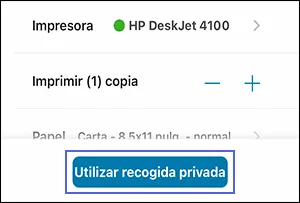
B. Release or delete private pickup jobs (Android and iOS)
With private pickup, the job waits until you release it from the app, near the printer.
- Open HP Smart: within 72 hours of sending the job, open the app when you are near your printer (the time limit may vary by version).
- Connect to the printer: wait at least 45 seconds for the app to connect.
- Release the jobs: tap “Private pickup files” next to the printer icon.

- Select the files you want to print from the queue and tap “Send to printer”.

- Delete files (optional): if you need to remove files from the queue, select them and tap “Delete selected”.

✔ Done!
5. Scan from Your Phone with HP Smart
On all-in-one printers, HP Smart also scans: open the app, tap Scan, choose the glass or the feeder (or the phone camera), adjust the settings and tap the scan button. You can then save the file, share it, print it or send it by fax.
6. Use Mobile Fax
HP Smart also lets you send documents by fax securely over the internet, with no fax machine or traditional phone line. Availability and conditions depend on your country and HP account.
How to send a mobile fax from HP Smart
- Open HP Smart on your phone.
- Choose what to send: select the document or photo from your phone or cloud service.
- Create fax: sign in to your HP account if asked and tap “Create fax” (Windows, macOS) or “Create new fax” (Android, iOS).
- Enter the information: in “To”, type the recipient’s fax details or tap the user icon to add a contact; in “From”, enter your information or pick an existing profile.

- Add files and cover page: tap “Files and cover page”. To add a cover page, turn it on and enter a subject and message or open a template.
- Existing files: tap “Files and photos” and pick the file on your device.
- Scan with the printer: tap “Scanner” (Windows, macOS) or “Printer scanner” (Android, iOS) and scan the file.
- Scan with the camera: tap “Camera” and scan the file with the device camera.
- Notes or signatures: tap the “Scribble” icon, create or add marks and tap “Done” to save them.
- Send the fax: check the cover page and the attached file and tap “Send Fax”.

How to cancel and check the fax status
- Cancel: tap “Cancel” on the dialing screen within 20 to 30 seconds of sending.
- Check the status: open the “Sent” tab on the Mobile Fax home screen.
✔ Done!
7. Printer Status, Ink and Maintenance
From HP Smart you can see the printer status, error alerts and, on many models, the approximate ink level and settings.
- Ink level: it is an estimate. Replace the cartridge when the printer tells you to.
- Alerts: the app shows messages such as out of paper or a jam.
- Maintenance: if prints come out streaked or with missing colors, use the printer’s own cleaning functions.
8. Troubleshooting Common Problems
The app can’t find my printer
Check that they are on the same Wi-Fi network, the printer is on and, on iPhone, HP Smart has Local Network permission. If it isn’t on your network, see the Wi-Fi guide.
It loses the connection to the printer
Restart the printer, the router and the app. Avoid guest networks or networks with device isolation, which block communication between phone and printer.
I can’t print remotely
Check that you’re signed in with the HP account you registered the printer with, that it is on and online, and that your model supports the feature.
My private pickup job won’t print
Open HP Smart near the printer within the time limit (about 72 hours depending on version), wait for it to connect and tap “Private pickup files”.
Prints come out streaked or smudged
Check that the paper matches the chosen type and clean the head: see how to clean HP print heads.
The app crashes or closes
Update HP Smart and the phone’s system, restart the app and, if it persists, uninstall and reinstall it. On Windows you can use HP Print and Scan Doctor to diagnose the printer from a computer.
Need more help? Official HP support.
9. Frequently Asked Questions About Printing from Your Phone with HP
How do I print from my phone to an HP printer?
Install the HP Smart app (Android or iPhone), put the phone and printer on the same Wi-Fi network, tap the + sign to add the printer, choose Print documents or Print photos, select the file and tap Print.
Is HP Smart free?
The download from Google Play and the App Store is free. Some features, such as remote printing or mobile fax, require an HP account and may have conditions depending on your country and model.
My HP printer doesn’t show up in the app, what do I do?
Check that it is on and on the same Wi-Fi network as the phone. On iPhone, allow local network access for HP Smart. If it isn’t on your network yet, follow the HP Wi-Fi connection guide.
Can I print without being on the same network as the printer?
Yes, with HP Smart remote printing: you sign in with your HP account and send the job from anywhere with internet. The printer must be on, connected to the internet and compatible; availability depends on the model.
What is private pickup?
It is a remote printing option: the job waits and only prints when you open HP Smart near the printer and release it. It is useful for documents you don’t want coming out on their own in the tray.
Can I send a fax from my phone with HP Smart?
Yes, HP Smart mobile fax sends documents over the internet without a fax machine or phone line. You need to sign in to your HP account, and the service may vary by country and plan.
Can I scan from my phone with HP Smart?
Yes, on all-in-one printers. Open HP Smart, tap Scan and choose the glass or the feeder. See the full guide to scan with HP.
Can I print from my phone without installing HP Smart?
On many models yes: iPhone and iPad can use AirPrint and Android the system print service (Mopria), with the printer on the same network. Advanced options, remote printing and mobile fax require HP Smart.
Congratulations! You’re ready to print from your phone to an HP printer
Check these tutorials to keep learning:
HP guides
How to scan with HP
All methods: PC, phone and more.
HP Smart
Scan, print and manage your HP.
HP Scan
The scanning software that comes with the driver.
Connect HP to Wi-Fi
Wireless setup step by step.
Drivers, maintenance and tools
HP Drivers
All models for Windows, Mac and Linux.
Clean HP print heads
Fix streaks and poor print quality.
HP Print and Scan Doctor
Fix printing and scanning errors.
Print Cost Calculator
Work out what printing really costs.
Explore more at UnaImpresora
All Printer Drivers
Epson, Canon, HP and Brother.
Scan with Epson
Got an Epson too? See its guide.
UnaImpresora
Drivers, guides and tools for your printer.
Drivers sourced directly from the official HP support site. Prefer video? Watch the YouTube tutorials.