Which Scanning Method Is Right for You?
Your Epson all-in-one printer can scan in four main ways. Pick the one that matches the device you have at hand and jump straight to that section:
💻 PC or Mac
Epson Scan 2 or ScanSmart. Most control and quality.
📱 Phone or tablet
Epson iPrint over Wi-Fi or Wi-Fi Direct. No computer needed.
🖨️ Control panel
Scan from the printer to USB, memory card or PC.
☁️ The cloud
Epson Connect: Dropbox, Google Drive, email.
| Method | Best for | You need | Full guide |
|---|---|---|---|
| Epson Scan 2 | Photos, advanced settings, text for OCR | PC or Mac + driver | Epson Scan 2 guide |
| Epson ScanSmart | Quick scans and combining pages into one PDF | PC or Mac + ScanSmart | ScanSmart guide |
| Epson iPrint | Scanning from a phone or tablet | App + Wi-Fi or Wi-Fi Direct | iPrint guide |
| Control panel | Scanning without a computer | Model with a screen | See section |
| Epson Connect | Sending scans to the cloud or email | Epson Connect account + Wi-Fi | Epson Connect guide |
Download the Software and Drivers You Need to Scan with Epson
To scan you need to install the right software: Epson Scan 2, Epson ScanSmart or Epson iPrint. Follow these steps:
- Visit our Epson drivers page.
- Find your model (for example L3250, XP-2101, L4150).
- Download the driver and software that match your system (Windows 11, macOS, Linux).
- Run the installer and follow the instructions.
Popular models: Epson L3250Epson L3210Epson L4150Epson L5590Epson XP-2101

Scan from PC or Mac with Epson Scan 2 or ScanSmart
Use Epson Scan 2 for advanced settings or Epson ScanSmart for a simpler experience. Works with Windows 11, macOS and models like the L3250, XP-2101 and L4150.
Scan with Epson Scan 2
- Turn on the printer and place the document face down on the glass.
- Open Epson Scan 2 (Windows: Start > Epson Software; Mac: Applications > Epson Software).
- Select Document Mode or Photo Mode.
- Set the resolution (200 dpi for documents, 300 dpi for photos) and the format (PDF, JPEG).
- Click Preview and adjust the scan area.
- Click Scan and save the file.

Scan several pages into one PDF
Choose PDF as the format, scan the first page and use the + button to add more sheets to the same file before saving. With an automatic document feeder (ADF) you can load all the sheets at once and, on supported models, enable double-sided scanning.
Scan with Epson ScanSmart
- Place the document on the glass or in the automatic feeder.
- Open Epson ScanSmart.
- Select the scan area (for example Letter 8.5×11).
- Click Scan and review the preview.
- Edit (rotate, crop) and save as PDF or JPEG.

Scan from a Phone or Tablet with Epson iPrint
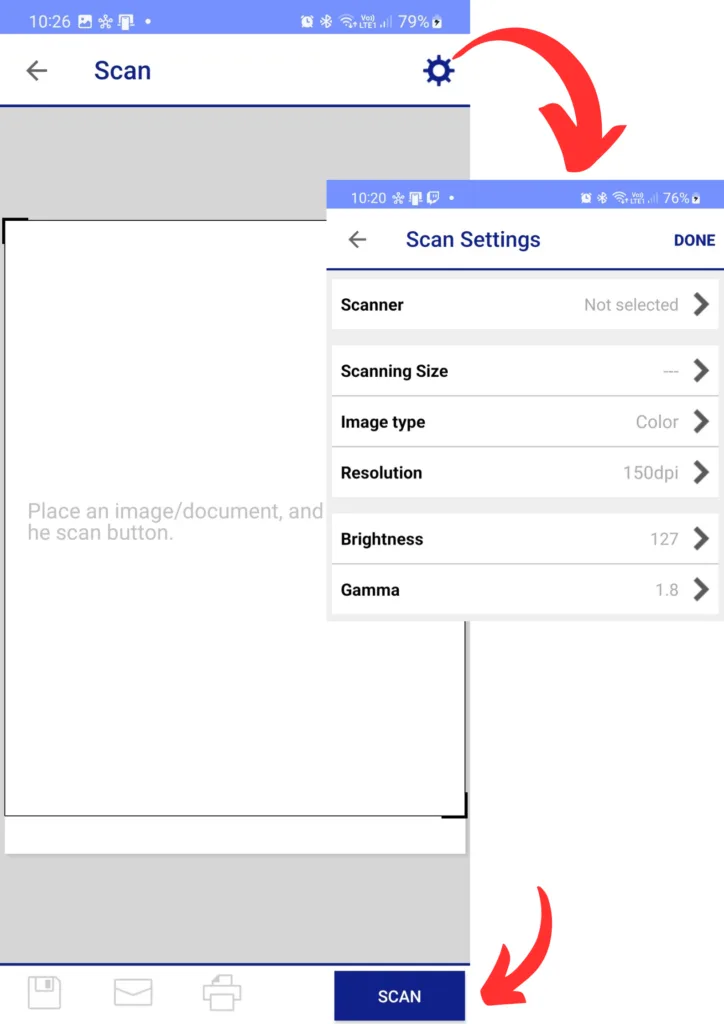
Use Epson iPrint to scan from Android or iOS over Wi-Fi or Wi-Fi Direct. Ideal for models like the L3250 and L4150.
- Download Epson iPrint from the Play Store or App Store.
- Connect the printer to the same Wi-Fi network as your device, or use Wi-Fi Direct.
- Open the app and select Scan.
- Place the document on the glass and choose the source (Glass or ADF).
- Tap Scan and save or share (email, cloud).
Scan from the Printer Control Panel
If your Epson has a screen and scan buttons, you can scan without opening any program. Menu names vary by model.
- Place the document face down on the glass or in the automatic feeder.
- On the panel, go to Scan.
- Choose the destination: Computer (requires the driver and Epson Event Manager installed), USB drive or memory card (if your model has a slot) or cloud and email (requires Epson Connect).
- Set size, color and format (PDF or JPEG) and press Start.
Scan to the Cloud with Epson Connect
Use Epson Connect to scan and send documents to Dropbox, Google Drive or email straight from the printer (on supported models).
- Register your printer at Epson Connect.
- On the control panel, select Scan to Cloud.
- Choose the destination (email, Dropbox, etc.).
- Place the document and press Scan.

Recommended Resolution and Format
| Use | Resolution | Format |
|---|---|---|
| Quick scan or draft | 150 dpi | JPEG or PDF |
| Text documents | 200 dpi | PDF (multi-page) |
| Text for OCR and standard photos | 300 dpi | PDF or JPEG |
| Important photos or files to edit | 300–600 dpi | PNG or TIFF |
Fix Common Problems When Scanning with Epson

The Epson printer isn’t detected
Make sure it is on and connected (USB or Wi-Fi) and that the drivers are installed. Reinstall Epson Scan 2 from Epson drivers.
Low scan quality
Increase the resolution (300 dpi for photos, 200 dpi for documents) and clean the scanner glass with a soft cloth.
Epson iPrint won’t connect
Confirm the printer and phone are on the same Wi-Fi network. Reinstall the app or use Wi-Fi Direct. More fixes.
Epson Scan 2 / ScanSmart error
Update the software and check the network connection or USB cable. Fixes for Epson Scan 2 · for ScanSmart.
The Epson Scan 2 window doesn’t fit the screen
On small screens: right-click the desktop > Display settings and raise the resolution, or lower the scaling. You can also connect a larger monitor.
Scanning with Epson on Linux
Install sane-utils and simple-scan (Ubuntu, Mint, Pop!_OS) or sane-backends (Fedora). Follow the Linux guide on your model’s page.
Still not working? Reinstall the driver for your model from Epson drivers or check the Wi-Fi connection guide.
Frequently Asked Questions About Scanning with Epson Printers
How do I scan to PDF with an Epson printer?
In Epson Scan 2 or ScanSmart, select PDF as the format before scanning and use the + button to add more pages to the same file.
How do I scan several pages into one PDF with Epson?
Choose PDF as the format, scan the first page and use the + button to add more sheets before saving. If your model has an automatic document feeder (ADF), load all the sheets and they scan one after another.
Can I scan from my phone with Epson iPrint?
Yes. Download Epson iPrint, connect the printer over Wi-Fi or Wi-Fi Direct and choose the Scan option. See the iPrint guide.
Why won’t my Epson printer scan?
Check the connection, reinstall the drivers and make sure Epson Scan 2 or ScanSmart is up to date. Get the software for your model on the Epson drivers page.
How do I scan double-sided with Epson?
Use the automatic document feeder (ADF) and enable double-sided scanning in Epson Scan 2 or ScanSmart.
Is Epson Scan 2 compatible with Windows 11?
Yes. Download the latest version from the drivers page for your model.
Can I scan without a computer?
Yes. Use Epson iPrint on your phone, scan from the printer panel to a USB drive or memory card (depending on the model), or send scans to the cloud with Epson Connect.
How do I scan with an Epson on Linux?
Install sane-utils and simple-scan on Ubuntu, Mint or Pop!_OS, or sane-backends on Fedora, in addition to the escpr driver from your model’s Linux guide.
What is the difference between Epson Scan 2 and Epson ScanSmart?
Epson Scan 2 gives you more settings (resolution, photo mode, text enhancement for OCR). ScanSmart is simpler: scan, combine pages and save or send the file in a few clicks.
Where do I download the scanning software for my model?
On the Epson drivers page, find your model and download the driver, Epson Scan 2 and the official utilities.
Keep Exploring: Guides and Resources for Your Epson
Scanning guides
Epson Scan 2 Guide
Advanced settings, OCR and photos.
Epson ScanSmart Guide
Simple scanning and automatic enhancements.
Epson iPrint Guide
Scan from your phone and use Wi-Fi Direct.
Epson Connect Guide
Scan and print with the cloud.
Drivers, connection and maintenance
Epson Drivers
All models, Windows, Mac and Linux.
Connect Epson to Wi-Fi
Wireless setup step by step.
Clean Print Heads
Fix streaks and poor print quality.
Print from your phone
Print with Epson iPrint and AirPrint.
System Requirements Checker
Check if your computer is compatible.
Explore more at UnaImpresora
All Printer Drivers
Epson, Canon, HP and Brother.
Print Cost Calculator
Work out what printing really costs.
Get the most from your printer and scanner with official tools – drivers sourced directly from the official EPSON website. Prefer video? Watch the YouTube tutorials.