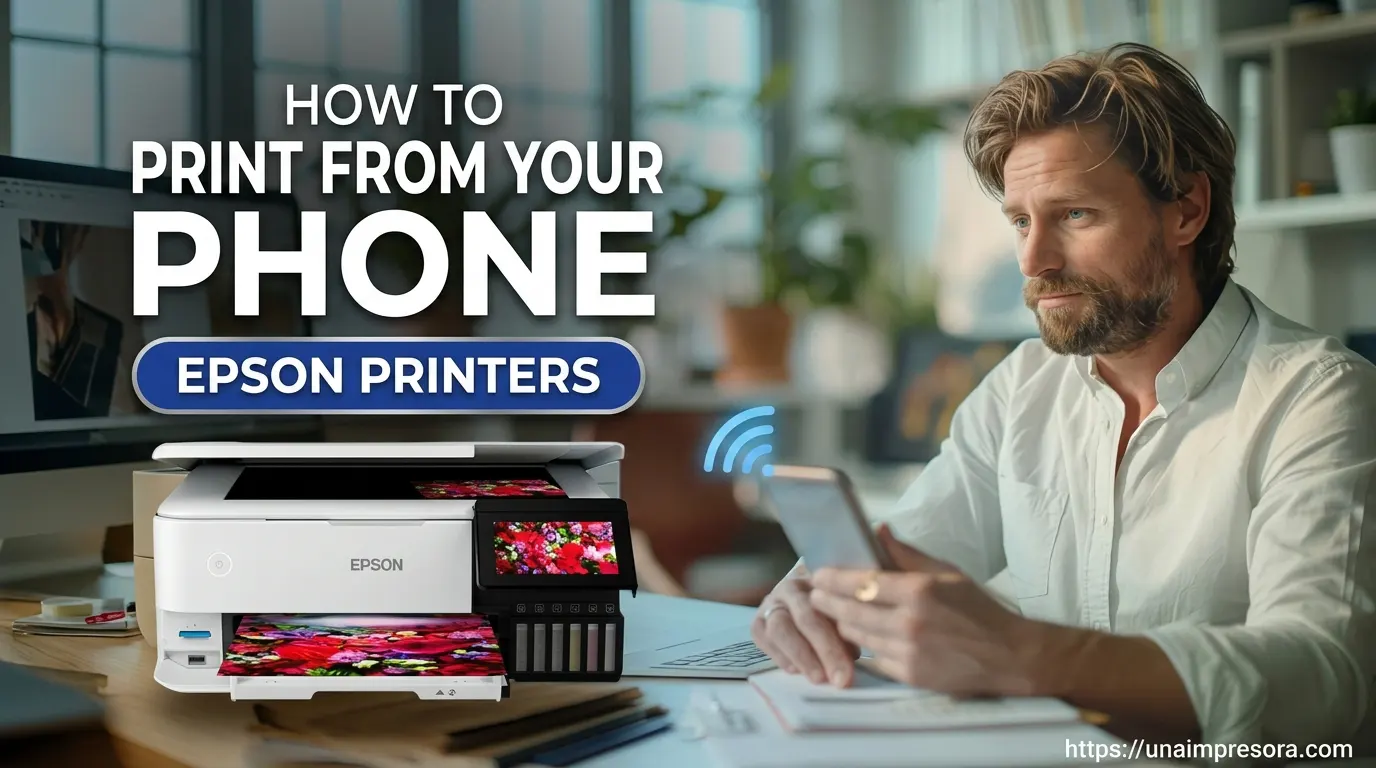
How Can You Print from Your Phone with Epson?
You have several ways to print from your phone to an Epson printer. Pick the one that works best for you and jump to its section:
| Method | Best for |
|---|---|
| Epson iPrint (Android and iOS) | The complete option: photos, documents and print settings |
| Apple AirPrint (iPhone, iPad) | Print from any app without installing anything |
| Wi-Fi Direct | You have no router or the printer isn’t on your network |
| Epson Smart Panel | Some newer models use this app instead of iPrint |
1. Install Epson iPrint
Epson iPrint is the recommended app for printing from mobile devices such as smartphones and tablets. Available for Android and iPhone.
| Operating system | Download links |
|---|---|
| Android | Epson iPrint – Google Play |
| iPhone / iPad | Epson iPrint – App Store |

2. Connect Your Phone to the Printer
There are two ways to connect: over the same Wi-Fi network (the most convenient) or via Wi-Fi Direct (no router).
A. Over the same Wi-Fi network
- Turn on the printer and check that it is connected to the same Wi-Fi network as your phone.
- Open Epson iPrint and, at the top, tap the printer name (or “Printer is not selected”) to choose it from the list.

B. With Wi-Fi Direct (no router)
To connect Epson iPrint to your printer via Wi-Fi Direct, follow these steps:
1. Set up Wi-Fi Direct in the app
- Open the Epson iPrint app on your mobile device.
- Tap “Printer is not selected” at the top to open the printer selection screen.
- Select “Wi-Fi Direct Setup”.

2. Select the printer type
- Say whether your printer has an LCD screen or not.
- Follow the additional steps directly on the printer.

3. Turn on Wi-Fi Direct on the printer
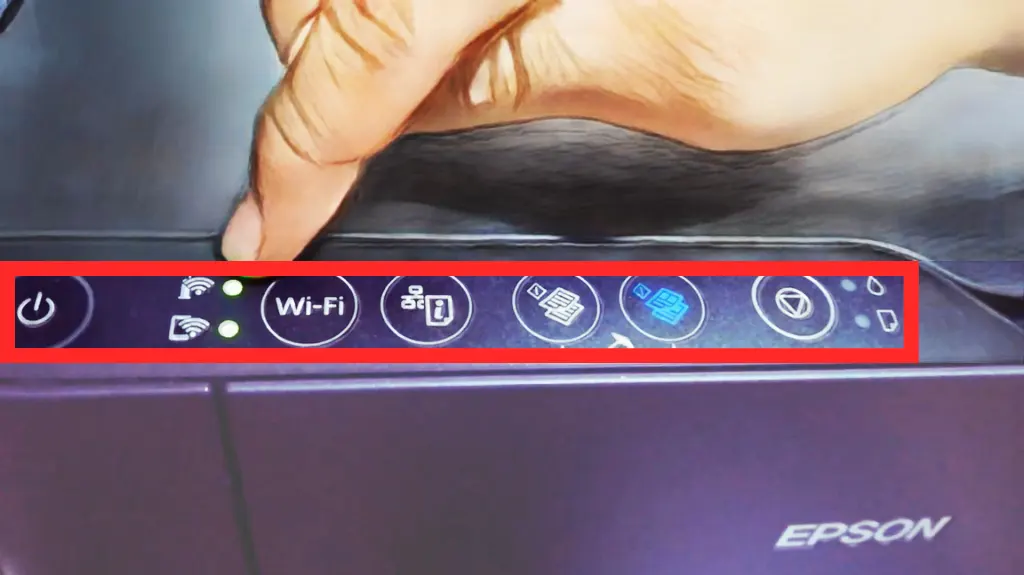
Printers without an LCD screen
- Hold the “Wi-Fi” button and press the “Network status” button until the Wi-Fi and Wi-Fi Direct lights blink alternately. Then release the buttons.
- The printer will start creating its own Wi-Fi network and password, different from your main internet signal (its own network name [SSID] and password).
- Hold the “Network status” button for 10 seconds to print the network status sheet.

Printers with an LCD screen
- On the printer screen go to: “Settings > Network Settings > Wi-Fi Setup”.
- Select “Wi-Fi Direct settings”.
- Follow the on-screen instructions to see the printer’s network name (SSID) and password.

4. Connect the phone to Wi-Fi Direct
- In Epson iPrint, choose the SSID shown on the network status sheet you printed or on the printer’s LCD screen.
- Enter the password shown.

✔ Done!
3. Print Photos
To print photos from your mobile device to an Epson printer, follow these steps:
- Open Epson iPrint on your mobile device.
- Sync the printer: make sure it is on the same Wi-Fi network as the phone and choose its name at the top of the app.
- Choose the option: inside the app, tap “Print Photos”.

- Select the photo from your image gallery.
- Tick the “Selected” box in the preview and tap “Next”.
- Set up the print: in the preview tap “Settings” to adjust:
- copies, paper size and margin
- image type (color or black and white) and quality
- paper feeder, date, Auto correct and sharpness
- to add more photos tap “+”; “Clear” deletes them and “Rotate” changes their orientation
- Print: when everything is ready, tap “Print”.


✔ Done!
4. Print Documents
To print documents from your phone to your Epson printer, follow these steps:
- Sync the printer: open Epson iPrint, check that the printer is on the same Wi-Fi network and choose its name at the top (same as when printing photos).
- Choose the option: inside the app, tap “Print Documents”.
- Select the document in your phone’s storage.

- Check the document: move between pages with the “<” and “>” arrows on the sides.
- Set up the print: in the preview tap “Settings” to adjust:
- copies and page range
- paper size and margin
- input and output image (color or black and white)
- quality and paper feeder
- one-sided or double-sided printing (depending on the model)
- Print: when everything is ready, tap “Print”.


✔ Done!
5. Print with Apple AirPrint (iPhone and iPad)
Confirm your printer’s AirPrint compatibility on Apple’s official page and follow these steps to print from your phone to your Epson printer. You don’t need to install any app.
- Make sure your iPhone or iPad is connected to the same Wi-Fi network as the printer.
- Open the app you want to print from.
- Tap the share icon (
 or
 ) or tap “More” (
 ).
- Scroll down and choose the printer icon or “Print” (
 ). If you don’t see this option, check the app’s help: not all apps support AirPrint.
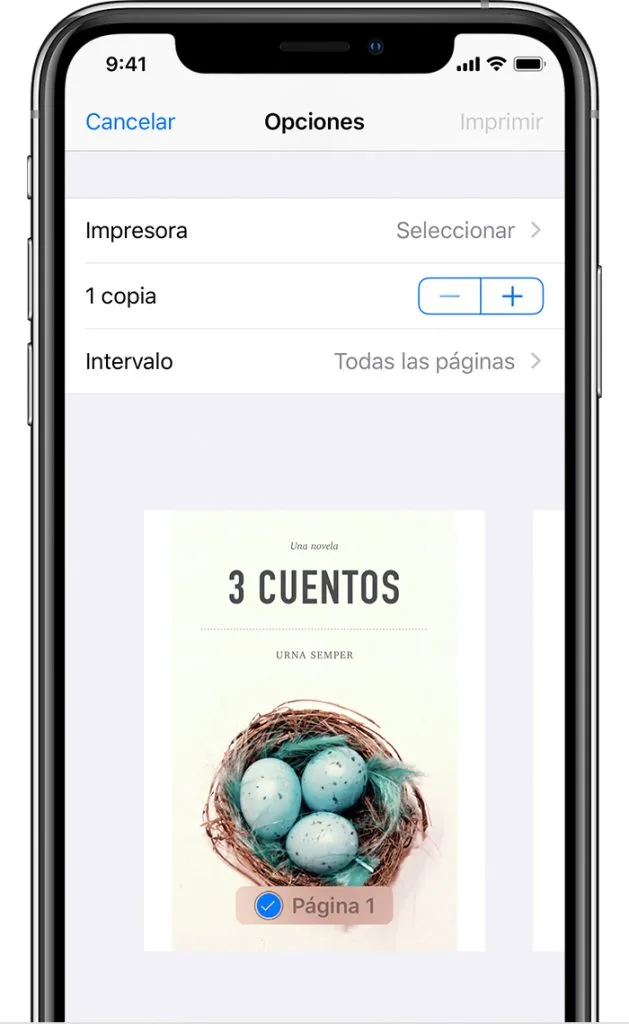
- Select your Epson printer.
- Choose the number of copies and other options, such as the page range.
- Tap “Print” in the upper right corner of the screen.
✔ Done!
6. Troubleshooting Common Problems
The app can’t find my printer
Check that they are on the same Wi-Fi network, the printer is on and, on iPhone, the app has Local Network permission. If it isn’t on your network, see the Wi-Fi guide.
Wi-Fi Direct won’t connect
Check the SSID and password on the network status sheet, move the phone closer to the printer and repeat the Wi-Fi Direct activation. If your phone jumps to another network, turn off automatic connection to other networks while you print.
AirPrint doesn’t show my printer
Check that the printer supports AirPrint, that the iPhone and printer are on the same network and that the app you print from supports AirPrint.
Prints come out streaked or smudged
Check that the paper matches the chosen type and clean the head: see how to clean Epson print heads.
The app crashes or closes
Update Epson iPrint and the phone’s system, restart the app and, if it persists, uninstall and reinstall it. If your model is recent, try Epson Smart Panel.
The job stays in the queue
Check that the printer has no errors on its panel (paper, ink, jam), cancel the job, restart the printer and send it again.
Need more help? Official Epson support.
Frequently Asked Questions About Printing from Your Phone to an Epson Printer
How do I print from my phone to an Epson printer?
Install Epson iPrint (Android or iPhone), connect the phone and printer to the same Wi-Fi network (or use Wi-Fi Direct), choose the printer in the app, tap Print Photos or Print Documents, select the file, adjust Settings and tap Print. On iPhone and iPad you can also use AirPrint.
Which devices are compatible with Epson iPrint?
Epson iPrint works on Android and iOS smartphones and tablets. To confirm your printer and operating system compatibility, check Epson’s official list.
Do I need Wi-Fi to print from my phone with Epson iPrint?
Not necessarily. With Wi-Fi Direct the printer creates its own network and the phone connects directly to it, with no router. It is available on many wireless Epson printers, depending on the model. While connected this way, the phone doesn’t use that network for internet.
Can I print PDFs from my phone with Epson iPrint?
Yes. Open the app, tap Print Documents and choose the PDF in the phone storage. See the steps in Print documents.
What types of files can I print?
Photos (JPG, PNG) and documents such as PDF and Office files (Word, Excel, PowerPoint). Supported formats may vary by app and system version.
Does Epson iPrint work the same on iOS and Android?
Yes, it is available for both systems with very similar steps. There is no PC version: it is exclusive to mobile devices. To print from a computer, use the printer driver.
How do I print from an iPhone without installing anything?
Use AirPrint if your printer is compatible: open the file, tap Share and then Print. See the steps in Print with AirPrint.
My phone can’t find my Epson printer, what do I do?
Check that the printer is on and on the same Wi-Fi network as the phone, restart both and update the app. If the printer isn’t on your network yet, follow the Epson Wi-Fi connection guide.
Congratulations! You’re ready to print from your phone to an Epson printer
Check these tutorials to keep learning:
Related Epson guides
Epson iPrint
Print and scan from your phone.
How to scan with Epson
All methods: PC, phone and panel.
Connect Epson to Wi-Fi
Wireless setup step by step.
Epson Connect
Print and scan with the cloud.
Drivers, maintenance and tools
Epson Drivers
All models, Windows, Mac and Linux.
Clean Print Heads
Fix streaks and poor print quality.
System Checker
Check your computer’s requirements.
Print Cost Calculator
Work out what printing really costs.
Explore more at UnaImpresora
All Printer Drivers
Epson, Canon, HP and Brother.
UnaImpresora
Drivers, guides and tools for your printer.
Drivers sourced directly from the official EPSON website. Prefer video? Watch the YouTube tutorials.