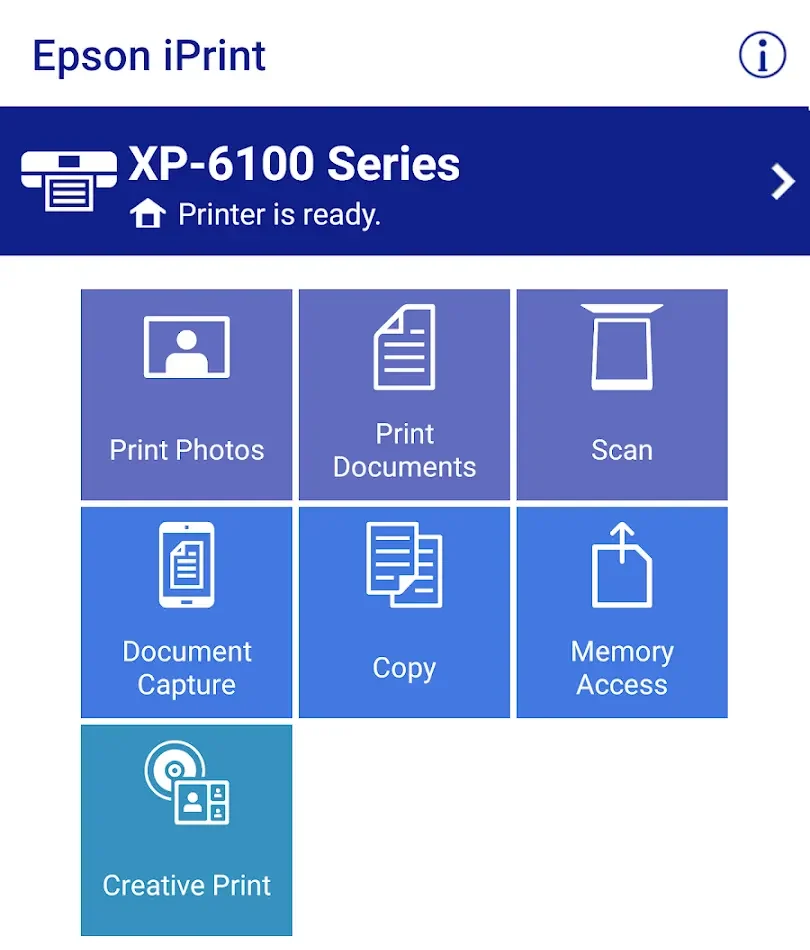
1. What Is Epson iPrint and Why Use It?
Epson iPrint is a free app for Android and iOS that lets you scan, print and manage your Epson printer from a mobile device. With Wi-Fi and Wi-Fi Direct support, it turns your phone into a control center for:
Scan documents
Digitize documents or photos to PDF or JPEG.
Share instantly
Send scans by email, WhatsApp or cloud services like Google Drive.
Mobile printing
Print files straight from your device.
Perfect for students, remote professionals or anyone who needs to digitize documents on the go. It is easy to use and works with models like the L3250, XP-2101, L4150 and more.
2. Epson iPrint Setup Step by Step
Setting up Epson iPrint to scan from your phone is quick and easy. Follow these steps:
A. Download the app
- Visit Google Play Store (Android) or the App Store (iOS).
- Install Epson iPrint (depending on the app version, it requires Android 5.0+ or iOS 12.0+).
Google Play (Android)App Store (iOS)
B. Connect the printer
- Turn on your printer (for example, Epson L3250) and connect it to the same Wi-Fi network as your phone.
- Open Epson iPrint and select your printer on the home screen.
- If you use Wi-Fi Direct, turn this option on from the printer panel and connect to its network (for example, “Epson_L3250_XXXX”). See Wi-Fi Direct.
C. Verify the setup
- Run a test scan to confirm the connection.
- Make sure the printer is up to date (firmware available on Epson downloads).

3. How to Scan with Epson iPrint
Scan documents or photos from your phone in a few steps:
- Prepare the document: place the document or photo face down on the printer glass, aligned with the guides.
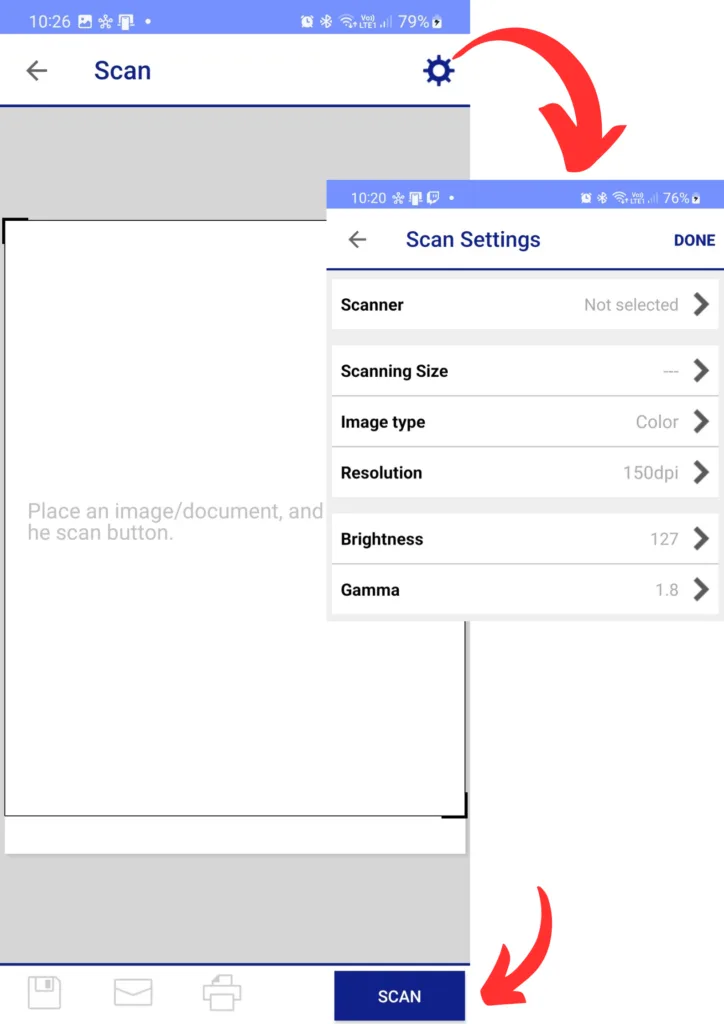
- Open the menu: open Epson iPrint and select Scan on the home screen.
- Adjust settings: tap Settings and choose size, type, resolution and brightness/contrast (see the table).
- Run the scan: press Scan and check the preview on your phone.

| Setting | Options | Recommended |
|---|---|---|
| Size | A4, Letter, Legal | The actual size of your sheet |
| Type | Color, Black and White, Grayscale | Grayscale or B/W for text; Color for photos |
| Resolution | 150 dpi (fast), 300 dpi (standard), 600 dpi (high quality) | 300 dpi for most things; 600 dpi for important photos |
| Brightness/Contrast | Optimizes clarity | Raise it slightly for faded documents |
4. How to Scan to PDF and Multiple Pages with Epson iPrint
To scan documents to PDF or combine several pages into a single file:
- Scan the first page: follow the steps above to digitize it.
- Add more pages: scan additional pages manually or use the ADF.
- Combine into PDF: in the preview, select Combine into PDF.
- Save or share: store the PDF on your device or send it by email, Google Drive or WhatsApp.
5. Use Wi-Fi Direct to Scan with Epson iPrint
If you don’t have a Wi-Fi network, use Wi-Fi Direct to connect your phone directly to the printer:
- Turn on Wi-Fi Direct: on the printer panel, select “Settings” > “Wi-Fi Direct” and enable the option.
- Connect your phone: find the printer’s network (for example, “Epson_L3250_XXXX”) in your device’s Wi-Fi settings.
- Scan: open Epson iPrint, select the printer and scan as usual.

6. Troubleshooting Common Problems

Epson iPrint doesn’t detect the printer
Check that the printer and phone are on the same Wi-Fi network or connected via Wi-Fi Direct. Restart both devices and update the app. If it persists, check the Wi-Fi connection guide.
Low-quality scans
Increase the resolution to 300 dpi or 600 dpi in the settings. Clean the scanner glass with a lint-free cloth.
Error saving or sharing
Check the available storage on your device. Try JPEG instead of PDF or use another app to share.
The app asks for permissions and finds nothing
If you denied the permissions, printer search can fail. On iOS allow local network access; on Android allow nearby devices or location permissions (depending on your version). Then search for the printer again.
7. Frequently Asked Questions About Scanning with Epson iPrint
How do I scan to PDF with Epson iPrint?
Scan the pages, select “Combine into PDF” in the preview and save the file. Details in the Scan to PDF and multiple pages section.
Why doesn’t Epson iPrint detect my printer?
Check the Wi-Fi or Wi-Fi Direct connection, restart your devices and update the app. Also review the app permissions and the Wi-Fi connection guide.
Can I scan several pages with Epson iPrint?
Yes, use the automatic document feeder (ADF) or combine pages manually into a PDF.
Is Epson iPrint compatible with the Epson L3250?
Yes, it works with models like the L3250, XP-2101, L4150 and others with Wi-Fi. See the drivers for the Epson L3250.
Is Epson iPrint free?
Yes, it is a free app for Android and iOS.
Can I scan without Wi-Fi or a router?
Yes, with Wi-Fi Direct you connect your phone directly to the printer. See the steps in Use Wi-Fi Direct to scan.
Epson iPrint or Epson Smart Panel?
On some newer models the equivalent app is Epson Smart Panel, with very similar steps. If iPrint doesn’t recognize your model, try Smart Panel.
How do I send the scan by email, WhatsApp or Google Drive?
When the scan finishes, use the app’s share option and choose email, WhatsApp or Google Drive. To send scans straight from the printer, see Epson Connect.
What if I want to scan from a computer?
Use Epson Scan 2 for full control or Epson ScanSmart for something simpler. All methods are in the general Epson scanning guide.
Keep Exploring: More Resources for Scanning with Epson
Related scanning guides
How to scan with an Epson
All methods: PC, phone, panel and cloud.
Epson Scan 2 Guide
Advanced settings, OCR and photos.
Epson ScanSmart Guide
Simple scanning and automatic enhancements.
Epson Connect Guide
Scan and print with the cloud.
Drivers, connection and tools
Epson Drivers
All models, Windows, Mac and Linux.
Connect Epson to Wi-Fi
Wireless setup step by step.
Print from your phone
Print with Epson iPrint and AirPrint.
PDF to Word Converter
Turn your scans into editable text.
Clean Print Heads
Fix streaks and poor print quality.
Explore more at UnaImpresora
All Printer Drivers
Epson, Canon, HP and Brother.
Print Cost Calculator
Work out what printing really costs.
Get the most from your printer and scanner with official tools – drivers sourced directly from the official EPSON website. Prefer video? Watch the YouTube tutorials.