1. What Is Epson Connect and Why Use It?
Epson Connect is a free service that connects your Epson printer to the cloud, letting you print and scan from anywhere without relying on a PC. Compatible with services like Dropbox, Google Drive, Evernote and email, it turns your printer into a versatile tool for:
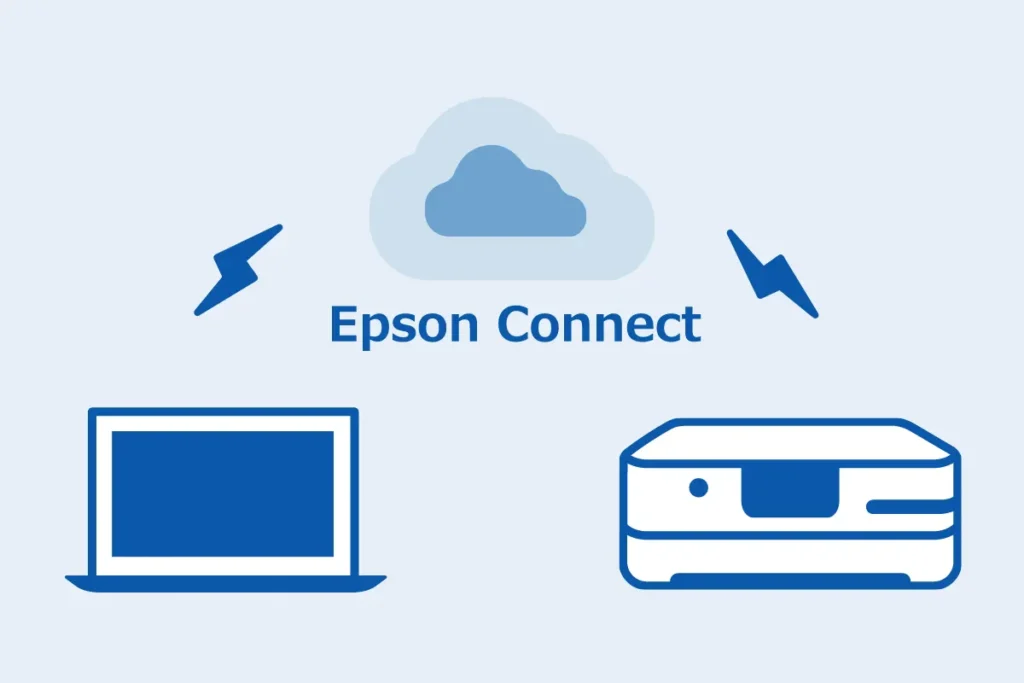
Scan to Cloud
Send documents straight from the printer to your favorite services (Dropbox, Google Drive, Evernote or email).
Print Remotely
Print files stored in the cloud from any device.
Easy Collaboration
Share scans instantly with colleagues or family.
Ideal for professionals on the go, students or small offices: Epson Connect removes the need for cables and complicated software.
Before you start, you need
- An Epson all-in-one printer that supports Epson Connect (only all-in-one printers have a scanner).
- A stable Wi-Fi connection with the printer already joined to your network.
- An email account to create your Epson Connect account.
- An account with the cloud service you want to use (Dropbox, Google Drive, Evernote).
2. Epson Connect Setup Step by Step
Setting up Epson Connect is simple. Follow these detailed steps:
A. Register your printer
- Visit epsonconnect.com and create an account with your email.
- Connect your printer to the Wi-Fi network (go to “Settings” > “Wi-Fi” on the panel).
- On the printer, select “Settings” > “Web Services” > “Epson Connect”.
- Print the registration sheet with a unique code.
- Enter the code in the Epson Connect portal to link your printer.
B. Add cloud destinations
- Sign in to your Epson Connect account.
- Go to “Destinations” and select services such as Dropbox or Google Drive.
- Authorize access to each service with your credentials.
C. Customize options
- Adjust the scan resolution (200 dpi for text, 300 dpi for photos).
- Choose file formats (PDF, JPEG).
- Set default folders in the cloud.
3. How to Scan to the Cloud with Epson Connect
Scan documents straight from your printer to the cloud in minutes:
- Prepare the document: place it on the glass or in the automatic feeder.
- Open the menu: on the panel, select “Scan” > “Scan to Cloud”.
- Choose a destination: select Dropbox, Google Drive or email from the list.
- Adjust settings: set the resolution, format and file name.
- Run the scan: press “Start” and check the file in the cloud.
4. How to Print from the Cloud with Epson Connect
Print files from anywhere with these steps:
- Sign in: log in to your account at epsonconnect.com.
- Select “Print from the Cloud”: choose the service (Dropbox, Google Drive, etc.).
- Choose the file: find and select the document or image.
- Set up printing: adjust copies, color and paper size.
- Print: click “Print” and wait for the printer to finish.
5. Advanced Settings for Epson Connect
Optimize your experience with these settings:
Scan Quality
Choose between 100-600 dpi and formats like PDF, JPEG or TIFF depending on the use (documents, photos, editing).
Automatic Organization
Set up specific folders in Dropbox or Google Drive for each type of scan.
Security
Add passwords to PDFs and restrict access to authorized users.
| Use | Resolution | Format |
|---|---|---|
| Text documents | 200 dpi | |
| Photos | 300 dpi | JPEG / PNG |
| Files to edit later | 300 dpi | TIFF |
| Quick scan or draft | 100–150 dpi | JPEG / PDF |
6. Troubleshooting Common Problems

Printer not connected
Check Wi-Fi, restart the printer and enable “Web Services” in the menu. If it won’t join the network, check the Wi-Fi connection guide.
Scans not sent
Confirm the authorization of the cloud services and the internet connection.
Print error
Make sure the file is supported (PDF, JPEG, DOCX) and check the network.
I changed router or Wi-Fi network
Reconnect the printer to the new network and, if it stops appearing in your account, repeat the registration.
The file is too big
Reduce the size (for example, lower the resolution to 200 dpi or split the PDF) and try again; the usual limit is 10 MB per file.
Need more help? Additional Epson support.
7. Frequently Asked Questions About Epson Connect
Which printers support Epson Connect?
Models like the L3250, L4150, XP-2101 and more. Check your model’s compatibility at epsonconnect.com.
What is the file size limit?
Up to 10 MB per file, depending on the cloud service.
Does it work without Wi-Fi?
No, Epson Connect requires a stable Wi-Fi connection. If you don’t have a router, see how to scan with Epson iPrint and Wi-Fi Direct.
Is Epson Connect free?
Yes, it is a free Epson service. You just need to create an account and register your printer.
How do I scan to Google Drive or Dropbox without a computer?
Register your printer, add Google Drive or Dropbox as a destination in your account and, on the printer panel, choose “Scan” > “Scan to Cloud”. Steps in How to scan to the cloud.
How do I print by email?
Send the file as an attachment to your printer’s unique address (for example, [email protected]). See How to print from the cloud.
Which file formats can I print?
PDF, JPEG and DOCX, among other supported formats. If it fails, convert the file to PDF.
Epson Connect or Epson iPrint?
Epson Connect sends and receives files through the cloud from anywhere. Epson iPrint is an app for scanning and printing from your phone when you are near the printer. You can use both.
Keep Exploring: More Resources for Scanning with Epson
Related scanning guides
How to scan with an Epson
All methods: PC, phone, panel and cloud.
Epson Scan 2 Guide
Advanced settings, OCR and photos.
Epson ScanSmart Guide
Simple scanning and automatic enhancements.
Epson iPrint Guide
Scan from your phone and use Wi-Fi Direct.
Drivers, connection and tools
Epson Drivers
All models, Windows, Mac and Linux.
Connect Epson to Wi-Fi
Wireless setup step by step.
Print from your phone
Print with Epson iPrint and AirPrint.
PDF to Word Converter
Turn your scans into editable text.
Clean Print Heads
Fix streaks and poor print quality.
Explore more at UnaImpresora
All Printer Drivers
Epson, Canon, HP and Brother.
Print Cost Calculator
Work out what printing really costs.
Get the most from your printer and scanner with official tools – drivers sourced directly from the official EPSON website. Prefer video? Watch the YouTube tutorials.