Which scanning method is right for you?
Scanning with CANON is simple. Pick the one that matches the device you have at hand and jump straight to that section, or open a full guide with every detail.
💻 PC or Mac
Canon IJ Scan Utility. Most control and quality.
📱 Phone or tablet
Canon PRINT over Wi-Fi. No computer needed.
🖨️ Panel or system
Scan without installing Canon software.
🛠️ Problems
Printer not found or poor results.
| Method | Best for | Full guide |
|---|---|---|
| Computer: IJ Scan Utility | Documents and photos with more control; Windows and Mac | IJ Scan Utility guide |
| Phone: Canon PRINT | Scan from your phone or with its camera | Canon PRINT guide |
| Advanced settings: ScanGear | Full control over color, resolution and cropping | ScanGear guide |
| Printer panel or system tools | No Canon software to install | See section |
| Connection: Wi-Fi | Printer not found or not on the network | Canon Wi-Fi guide |
1. Install the CANON scanning app
Before you can scan from your CANON printer, you need to download and install the official scanning software. There is 1 option for computers and 1 for mobile devices:
A. From a computer (Windows or Mac)
CANON IJ Scan Utility is the scanning software included with the printer drivers. On some models and on Mac it may be called IJ Scan Utility Lite; the steps are very similar. More details in the Canon IJ Scan Utility guide.
- Go to the following page to download your printer’s drivers: unaimpresora.com/en/drivers/canon/.
- Type your printer name in the search field and press “Search”.
- Click the driver that matches your Canon printer model.
- Follow the instructions and download the driver for your operating system.
- Run the downloaded file by double-clicking it.
- Continue with scanning on your computer.
B. From a mobile device (smartphone or tablet)
Download the CANON PRINT app
CANON PRINT Inkjet/SELPHY is available for Android and iPhone.
| Operating system | Download links |
|---|---|
| Android | Canon PRINT – Google Play |
| iPhone / iPad | Canon PRINT – App Store |
1. Open CANON PRINT
- Turn on the printer: make sure it’s on and connected to the same Wi-Fi network as your mobile device.
- Open the app: once installed, open CANON PRINT.
2. Add the printer in CANON PRINT
- Add printer: on the app’s home screen tap the plus sign (+) or “Add printer”. The app will search for available printers.
- Select the printer: pick it from the list of devices found.
- Finish the setup: follow the on-screen instructions; when it’s done you’ll see the message “Setup Complete”.
- Continue with scanning on your phone.


2. Scan documents or photos from the computer
Scan with the printer software (Canon IJ Scan Utility)
CANON IJ Scan Utility is the scanning application included with the printer software.
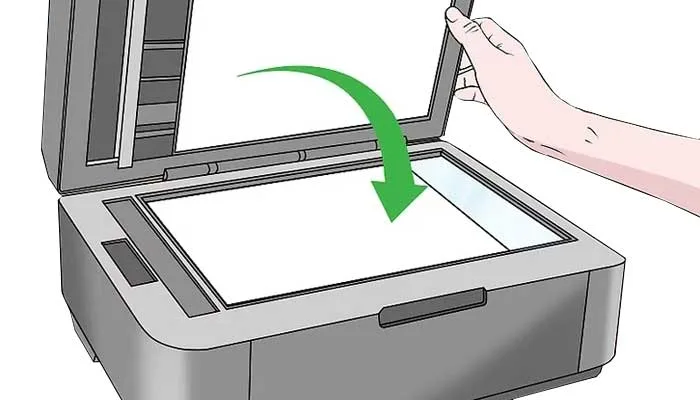
1. Place the document or photo
- Turn on the printer.
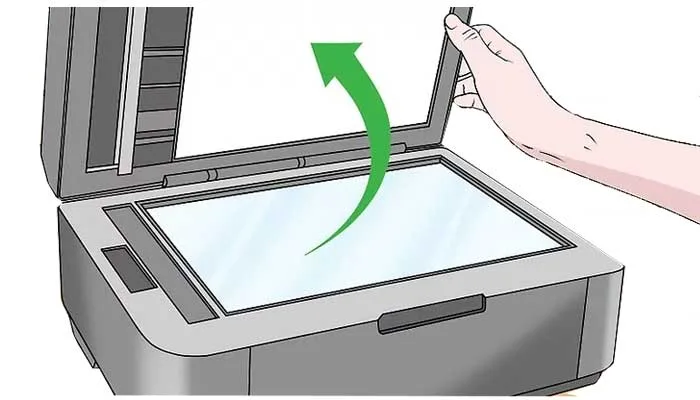
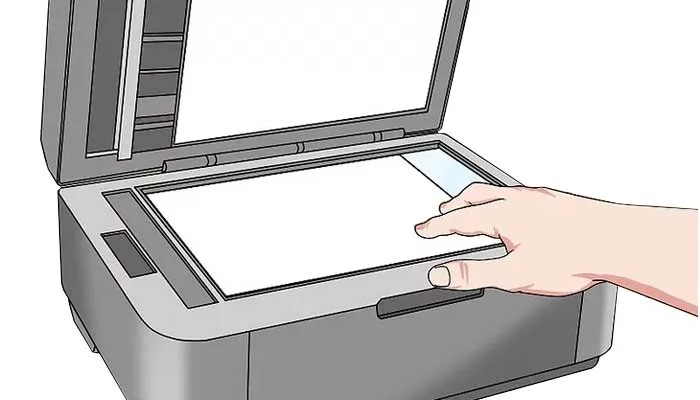
- Open the top cover and place the document or photo on the scanner glass.
- Align it carefully with the guide marked on the edge.
- Close the scanner cover.
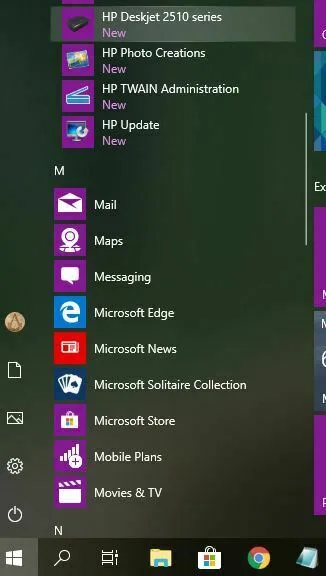
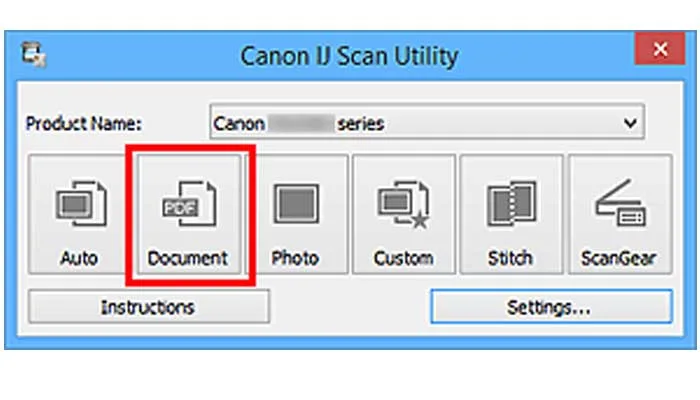
2. Open Canon IJ Scan Utility
- Open the Start menu in Windows.
- Type “IJ Scan Utility”.
- If it doesn’t appear, type “Canon Utilities”.
- Click it to open your Canon printer’s scanning software.
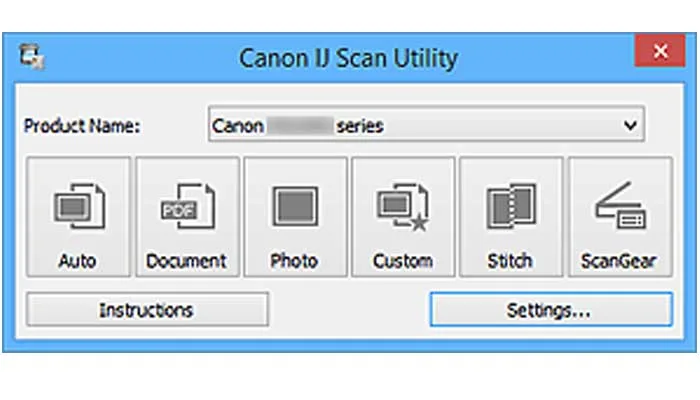
3. Select “Settings”
- Wait for the app to open, then press “Settings”.
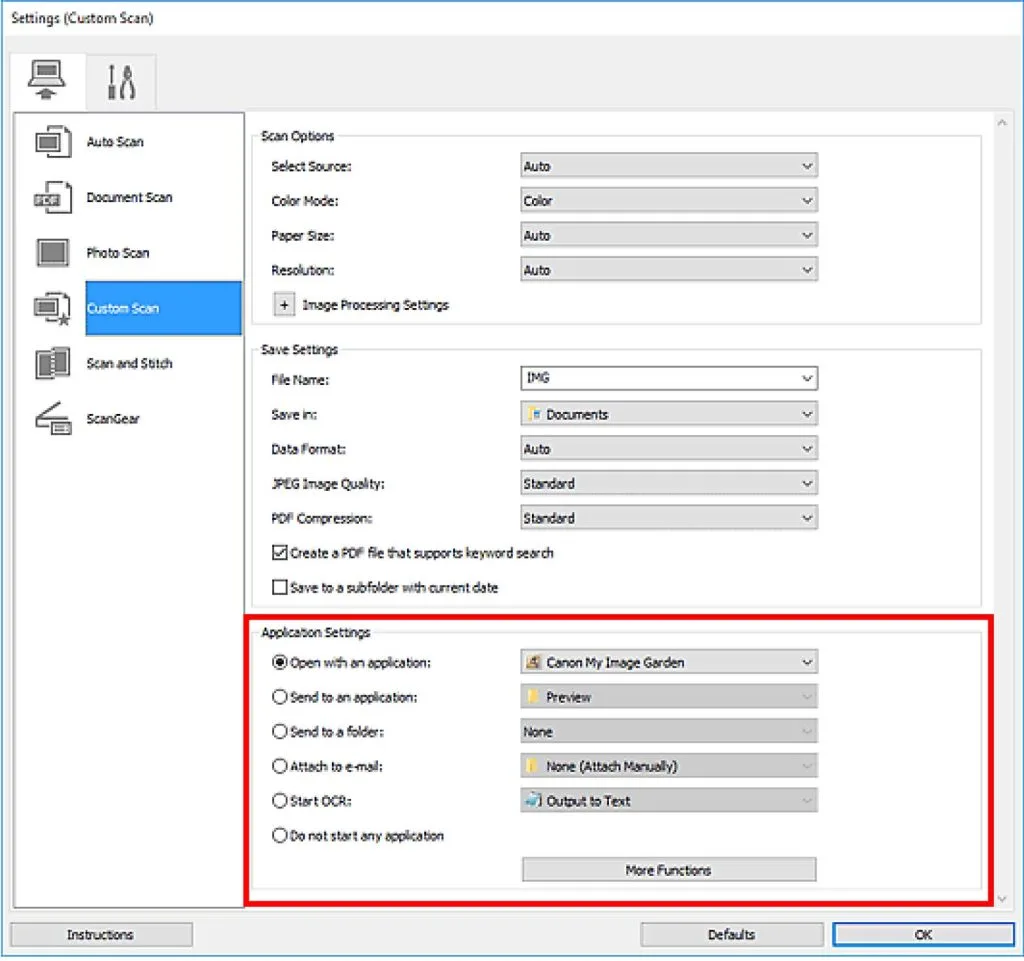
4. Adjust the scan settings
- Source: Automatic, Scanner glass or Document feeder (ADF models only).
- Color: grayscale or color.
- Scan area: match it to the paper size (Letter, A4, 4×6 in / 10×15 cm).
- Resolution: 300 dpi is recommended for photos; 200 dpi is enough for documents.
5. Choose a scan option
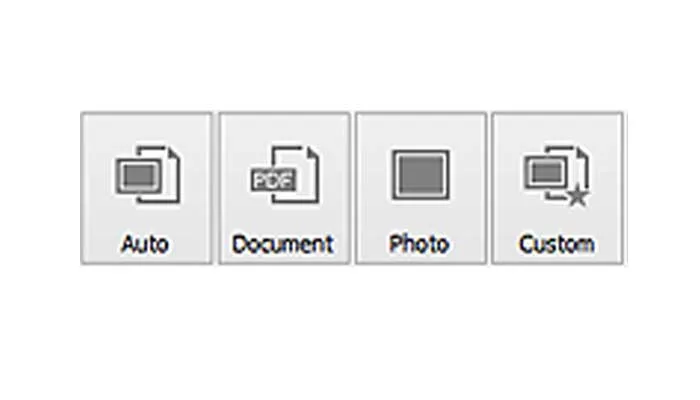
- Auto Scan: scans in one click with the default settings. It’s the generic option.
- Document: an image focused on the sharpness of the document’s text.
- Photo: the best option for scanning photographs.
- Custom: a custom scan option. The Driver button opens ScanGear for advanced adjustments (see ScanGear).
6. The scan starts
- When you click one of the options, the scan will start.
7. Save the file
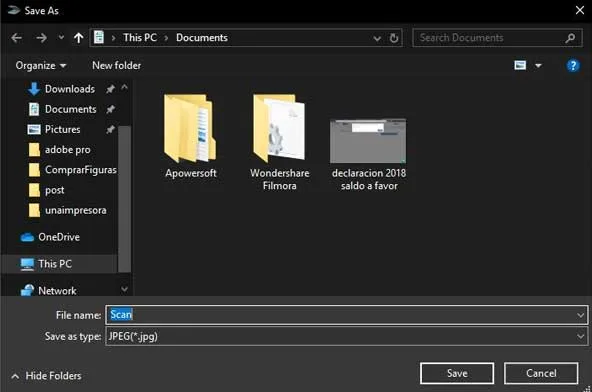
- If you’re happy with the result, press “Save”.
- You can save the file as PNG, JPEG or PDF.
- We recommend JPEG for smaller compressed images and PNG for higher lossless quality.
- If you’re scanning a document, you can combine all the pages into a single PDF file.
✔ Scan complete!
3. Scan from your phone
CANON PRINT is the recommended app for scanning from mobile devices such as smartphones and tablets. Follow these steps:
- Open CANON PRINT on your mobile device.
- Select Scan in the menu: on the home screen choose the job type “Scan”.


- Choose what to scan: a document or photo from the scanner glass or the document feeder; you can also import a photo saved on your phone or use the device camera to capture a document.
- Edit the scan settings:
- Original paper size: Letter, A4, 4×6 in / 10×15 cm.
- Source: Automatic, Scanner glass or Document feeder (ADF models only).
- Resolution: 300 dpi for normal quality or 1200 dpi for high quality.
- Color: grayscale or color.
- Scan: tap “Scan” or the circle button at the bottom (phone) or right (tablet) of the screen. You can print the scan directly or save it to your phone or the cloud.
✔ Scan complete!
4. Other ways to scan with Canon
You don’t always need to install the full software. These alternatives also work:
Printer panel
Many models with a screen let you choose Scan and send the file to a computer, a phone or a USB drive/card. Options vary: check your model’s manual.
Windows (no Canon software)
Install the free “Windows Scan” app from the Microsoft Store and pick your Canon printer from the list.
Mac (no Canon software)
Open “Image Capture” or go to System Settings > Printers & Scanners > your Canon > Scan.
Feeder (ADF)
If your model has a feeder, choose “Document feeder” as the source to scan several pages in a row.
5. Troubleshooting common problems

If you run into problems when scanning, here are some common fixes:
The printer can’t be found
- Check the connection: the printer must be on and connected to the computer. If it’s on a network, make sure the computer has permission to access it.
- Check the drivers: make sure they’re installed correctly; reinstall them if necessary.
- Check the IP range: the printer and the computer must be in the same IP range.
Can’t scan
- Printer connection: check that it’s properly connected by USB or Wi-Fi.
- Drivers: they must be installed and up to date.
- Error messages: scanning usually doesn’t need ink, but an ink error or another warning on the screen can block the printer; clear it first.
Scan quality problems
- Settings: check the resolution, paper size and the other options.
- Glass cleaning: the scanner glass must be clean and smudge-free; streaks in scans are almost always dirt on the glass.
- Software settings: confirm the options are the right ones.
The scanning software doesn’t respond
- Restart the software if it doesn’t respond.
- Restart the computer: it sometimes fixes the problem.
- Reinstall the software if it persists and make sure it’s up to date.
Streaks appear when printing, not scanning
- This is a print head issue, not a scanner one: follow the guide to clean Canon print heads.
Need more help? Official Canon support.
Frequently asked questions about scanning with Canon
How do I scan a document on a Canon printer?
Place the document on the glass, open Canon IJ Scan Utility on your computer, choose “Document” (or “Auto”) and save the result as PDF or an image. From your phone, use the Canon PRINT app.
Which Canon app can I use to scan from my phone?
Canon PRINT (Canon PRINT Inkjet/SELPHY), available for Android and iPhone. Details in the Canon PRINT guide.
Can I scan without installing Canon software?
Yes. On Windows you can use the “Windows Scan” app and on Mac “Image Capture”. You can also start a scan from the printer panel. See Other methods.
What resolution should I use?
200 dpi is enough for documents and 300 dpi is recommended for photos. In the mobile app you can choose 300 dpi (normal quality) or 1200 dpi (high quality).
How do I combine several pages into one PDF?
When saving a document with IJ Scan Utility you can combine all scanned pages into a single PDF file.
JPEG, PNG or PDF?
JPEG for smaller compressed images, PNG for higher lossless quality and PDF for single or multi-page documents.
Why can’t it find my printer?
Check that the printer is on and on the same Wi-Fi network as your device. If you haven’t connected it yet, follow the Canon Wi-Fi connection guide.
My Canon printer has no scanner, what can I do?
Only all-in-one printers (with a glass or feeder) can scan; print-only models can’t. In that case you can use another device with a scanner or photograph the document with your phone camera.
Congratulations! You’re ready to scan with your Canon printer
Check these tutorials to keep learning:
Canon scanning guides
Canon IJ Scan Utility
All the scanning software features.
Canon PRINT
Scan and print from your phone.
Canon ScanGear
Advanced scan settings.
Connect Canon to Wi-Fi
Wireless setup step by step.
Drivers, maintenance and tools
Canon Drivers
All models for Windows, Mac and Linux.
Clean Canon print heads
Fix streaks and poor print quality.
Print Cost Calculator
Work out what printing really costs.
Scan with Epson
Got an Epson too? See its guide.
Explore more at UnaImpresora
All Printer Drivers
Epson, Canon, HP and Brother.
UnaImpresora
Drivers, guides and tools for your printer.
Drivers sourced directly from the official Canon support site. Prefer video? Watch the YouTube tutorials.