 Windows Driver
 Mac Driver
 Linux Driver
 Official verified download – drivers direct from Canon
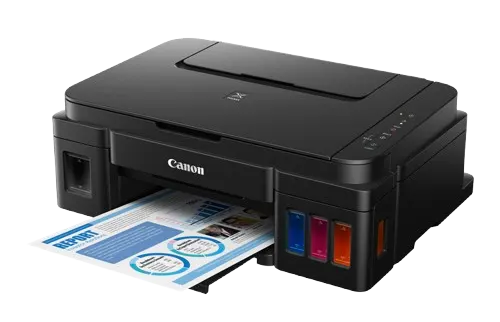

How to Install the Canon G2002 Driver
Follow these steps to set up your Canon G2002 printer without a CD:
- Select your operating system (Windows, Mac, or Linux).
- Click the matching download button.
- Open the downloaded file.
- Follow the installer instructions.
- Connect your printer and start printing.
Compatible with Windows 11/10/8.1/7, macOS Tahoe/Sequoia/Sonoma/Ventura/Monterey, and major Linux distributions.
Canon G2002 Driver Information (Updated 2026)
| Operating System | Version | Size | Updated | Download |
|---|---|---|---|---|
| Windows 11/10/8.1/7 (32/64-bit) | v1.04 | 72.69 MB | 02-Sep-2026 | |
| macOS Tahoe / Sequoia / Sonoma / Ventura / Monterey | v16.91.0.0 | 15.38 MB | 13-Sep-2026 | Download |
| Linux (Ubuntu, Fedora, Mint, Pop!_OS) | CUPS + Gutenprint | 18 MB | November 2026 | View full guide |
Model-Specific Notes and Common Errors for the Canon G2002
The Canon PIXMA G2002 may produce incomplete colors or white lines when its print-head nozzles become clogged after periods of inactivity. It does not include Wi-Fi or Ethernet, so it requires a USB connection to communicate with a computer.
If prints look uneven, run a nozzle check before cleaning the print head. If lines or colors are missing, use Canon’s cleaning function and check the result again; avoid repeated deep-cleaning cycles unless necessary.
This model supports printing, copying, and scanning. Before refilling its tanks, verify the compatible GI ink-bottle code on the printer label or in its regional documentation; do not assume every G2000 version uses the same ink reference.
Install Canon G2002 Driver on Linux (Recommended Method 2026)
This guide uses the native CUPS printing system together with Gutenprint. For many Canon models this is the most stable option. When available, you can also download the official IJ Printer Driver package from Canon.
1 Install the drivers and utilities
Open a terminal and run the command block for your distribution:
For Ubuntu, Linux Mint, and Pop!_OS:
sudo apt update
sudo apt install -y cups system-config-printer printer-driver-gutenprint
sudo systemctl enable --now cupsFor Fedora:
sudo dnf check-update
sudo dnf install -y cups system-config-printer gutenprint-cups
sudo systemctl enable --now cupsThe last command ensures the CUPS printing service starts automatically every time you boot.
2 Connect and detect the printer
Power on your Canon G2002 and connect it via USB or to the same Wi-Fi/Ethernet network as your Linux computer.
To verify that the system detects it, run:
lpinfo -vYou should see a line similar to one of these:
- USB:
direct usb://Canon/G2002 - Wi-Fi:
dnssd://Canon%20G2002._ipp._tcp.local/
3 Add the printer to the system
The simplest and most reliable way is to use the graphical tool:
system-config-printer- Click the Add button (or the + icon).
- Wait a few seconds. Your Canon G2002 should appear in the device list.
- Select the printer and click Forward.
- The system will try to select a compatible driver (Gutenprint or generic).
- Give it a simple name (for example:
Canon_G2002) and click Apply.
4 Configure print options
Inside system-config-printer:
- Right-click the printer → Properties.
- Go to Job Options or Printer Options.
- Most useful settings:
- Quality / Resolution: Draft (saves ink) or High Quality
- Color mode: Grayscale to save color ink
- Paper type: Plain, matte, or photo paper
- Duplex: Enable double-sided printing if your model supports it
- Click Apply.
5 Test printing
From any application:
Press Ctrl + P and select your Canon G2002.
From the terminal (quick test):
lp -d Canon_G2002 ~/Documents/file.pdfUseful extra commands:
# View jobs in queue
lpstat -o

# Cancel all jobs
cancel -asane-utils and simple-scan (Ubuntu/Mint/Pop) or sane-backends (Fedora).Having trouble during installation? Leave a comment and we will help.
Download Canon G2002 Scanner Driver – Canon Scan
Enable the scanner on your Canon G2002 printer with the official Canon Scan software.
Recommended version: v1.2 | Size: 25.43 MB | Updated: 13-Sep-2026

Download Additional Utilities for Mobile and Desktop
Canon PRINT APP for Mobile and Tablet
Canon Wi-Fi Connection Assistant
Canon Easy-PhotoPrint Editor
Update Firmware v1.1
Frequently Asked Questions – Canon G2002
What should I do if the driver does not work?
Uninstall the current driver from Control Panel, restart your computer, and install the latest version from this page again.
Is it compatible with Windows 11?
Yes, the official driver is fully compatible with Windows 11, 10, 8.1, and 7 in both 32-bit and 64-bit versions.
How do I install the driver on Linux?
Follow the complete Linux guide on this page. It is the most stable and recommended method in 2026 for Ubuntu, Fedora, Mint, and Pop!_OS using CUPS and Gutenprint.
Do I need the driver if Windows already detects the printer?
Windows sometimes installs a basic driver. To get full functionality (complete print quality, scanner, and utilities), it is recommended to install the official driver from this page.
Does it work with Apple Silicon (M1/M2/M3/M4/M5)?
Yes. Most modern Canon models work via AirPrint on macOS, as well as with the official driver when available.
Where is the official manual?
You can download the official Canon G2002 manual from the additional resources section on this page.
Common Problems with the Canon G2002 Printer
The printer does not print after installing the driver
Uninstall the previous driver from Windows Control Panel, restart your computer, and install the official driver from this page again. Also make sure the printer is powered on and correctly connected via USB or Wi-Fi.
The printer shows as “Offline” or will not connect over Wi-Fi
Restart both your router and the printer. Confirm that the computer and printer are on the same Wi-Fi network. If the problem continues, uninstall the driver, restart the computer, and install it again, reconfiguring the wireless connection during setup. You can also use the Canon Wi-Fi Connection Assistant available in the utilities section.
The scanner does not work or is not detected
Install the Canon Scan driver available on this page. If you are using Linux, also install the sane-utils and simple-scan packages (on Ubuntu, Mint, or Pop!_OS) or sane-backends (on Fedora), in addition to following the Linux guide. Then restart the computer and try scanning again.
Print quality is poor or pages show lines and smudges
Run a print head cleaning from the Canon software or from the Canon G2002 control panel. If the issue continues, check ink levels and make sure you are using compatible or original ink. You can also follow our print head cleaning guide.
The computer does not detect the printer over USB
Try a different USB cable and another port on the computer. Uninstall the current driver, restart the computer, and reinstall the official driver from this page. Connect the USB cable only when the installer asks you to.
More Resources and Accessories for Your Canon G2002
Buy compatible products for your printer.
Optimize your printer and scanner with official tools – Drivers sourced directly from the official Canon website. Page updated in 2026.
As an Amazon Associate, UnaImpresora earns from qualifying purchases.