 Windows Driver
 Mac Driver
 Linux Driver
 Official verified download – drivers direct from Epson


How to Install the Epson L1210 Driver
Follow these steps to set up your Epson L1210 printer without a CD:
- Select your operating system (Windows, Mac, or Linux).
- Click the matching download button.
- Open the downloaded file.
- Follow the installer instructions.
- Connect your printer and start printing.
Compatible with Windows 11/10/8.1/7, macOS Tahoe/Sequoia/Sonoma/Ventura/Monterey, and major Linux distributions.
Epson L1210 Driver Information (Updated 2026)
| Operating System | Version | Size | Updated | Download |
|---|---|---|---|---|
| Windows 11/10/8.1/7 (32/64-bit) | v3.80.05 | 68.9 MB | 11-Aug-2026 | |
| macOS Tahoe / Sequoia / Sonoma / Ventura / Monterey | v13.48 | 82.6 MB | 12-Jun-2026 | Download |
| Linux (Ubuntu, Fedora, Mint, Pop!_OS) | escpr (native) | 18 MB | November 2026 | View full guide |
Model-Specific Notes and Common Errors for the Epson L1210
The Epson EcoTank L1210 supports custom paper sizes up to 8.5 inches wide and 47.2 inches long, which can be useful for printing elongated designs, signs, or similar materials. To use this feature, set a custom paper size in the print preferences and make sure your software supports those dimensions. The results will also depend on the paper type and selected print settings.
Install Epson L1210 Driver on Linux (Recommended Method 2026)
This guide uses the open-source escpr driver, the most stable and recommended option for Ubuntu, Linux Mint, Pop!_OS, and Fedora. It integrates natively with the system and updates automatically.
1 Install drivers and utilities
Open a terminal and run the command block for your distribution:
For Ubuntu, Linux Mint, and Pop!_OS:
sudo apt update
sudo apt install -y printer-driver-escpr system-config-printer cups
sudo systemctl enable --now cupsFor Fedora:
sudo dnf check-update
sudo dnf install -y epson-inkjet-printer-escpr system-config-printer cups
sudo systemctl enable --now cupsThe last command ensures the CUPS printing service starts automatically every time you boot.
2 Connect and detect the printer
Power on your Epson L1210 and connect it via USB or to the same Wi-Fi/Ethernet network as your Linux computer.
To verify that the system detects it, run:
lpinfo -vYou should see a line similar to one of these:
- USB:
direct usb://Epson/L1210 - Wi-Fi:
dnssd://Epson%20L1210._ipp._tcp.local/
3 Add the printer to the system
The simplest and most reliable way is to use the graphical tool you just installed:
system-config-printer- Click the Add button (or the + icon).
- Wait a few seconds. Your Epson L1210 should appear in the device list.
- Select the printer and click Forward.
- The system will automatically choose the Epson Inkjet Printer Driver (ESC/P-R).
- Give it a simple name (for example:
Epson_L1210) and click Apply.
4 Configure print options
Inside system-config-printer:
- Right-click the printer → Properties.
- Go to Job Options or Printer Options.
- Most useful settings:
- Quality / Resolution: Draft (saves ink) or High Quality
- Color mode: Grayscale to save color ink
- Paper type: Plain, matte, or photo paper
- Duplex: Enable double-sided printing if your model supports it
- Click Apply.
5 Test printing
From any application:
Press Ctrl + P and select your Epson L1210.
From the terminal (quick test):
lp -d Epson_L1210 ~/Documents/file.pdfUseful extra commands:
# View jobs in queue
lpstat -o

# Cancel all jobs
cancel -aHaving trouble during installation? Leave a comment and we will help.
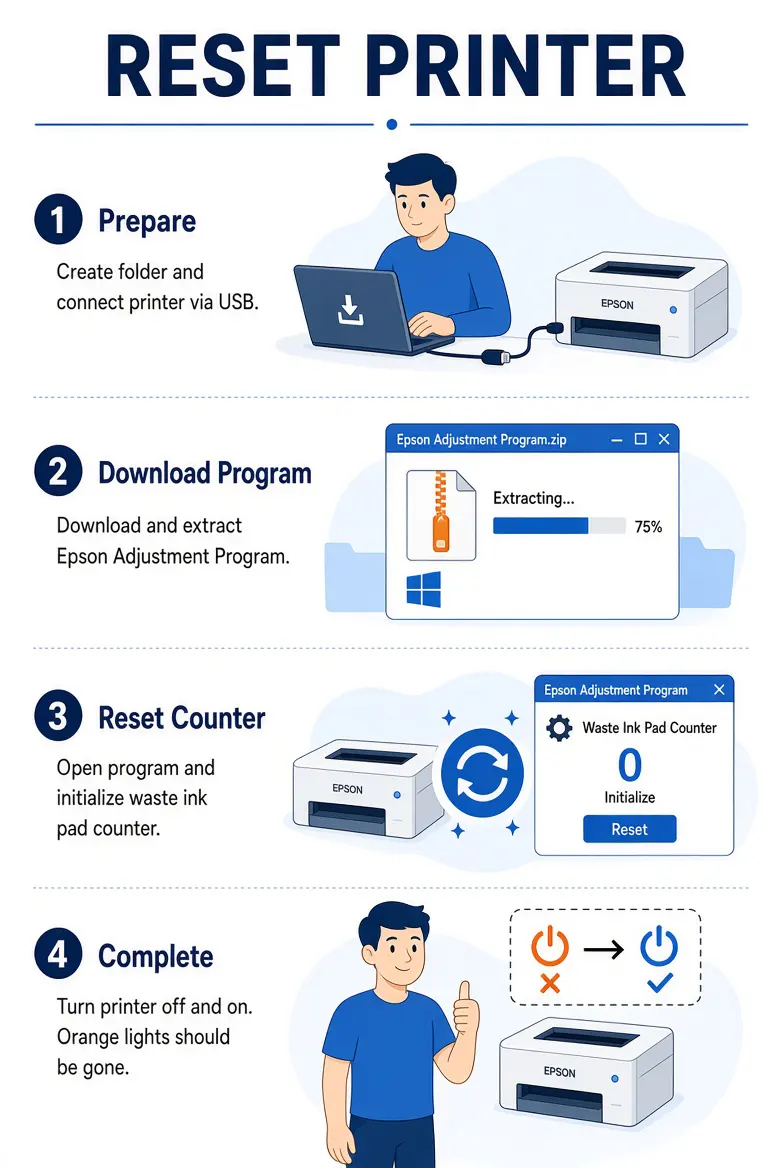
Reset Epson L1210 Ink Pads
If your printer is locked (orange lights or a “Service Required” message), you can reset the waste ink pad counter.
Important: The reset only clears the software warning. It does not clean or replace the physical ink pads.
Password: unaimpresora.com | Size: 742 KB | Updated: November 2026
Some antivirus programs may show a warning with this type of tool because it modifies the printer’s internal counter. Use it at your own risk.
Download Additional Utilities for Mobile and Desktop
Epson App for Phone and Tablet
Epson Remote Printer Driver
Update Firmware XI14L4
Frequently Asked Questions – Epson L1210
What should I do if the driver does not work?
Uninstall the current driver from Control Panel, restart your computer, and install the latest version from this page again.
Is it compatible with Windows 11?
Yes, the official driver is fully compatible with Windows 11, 10, 8.1, and 7 in both 32-bit and 64-bit versions.
How do I install the driver on Linux?
Follow the complete Linux guide on this page. It is the most stable and recommended method in 2026 for Ubuntu, Fedora, Mint, and Pop!_OS.
Do I need the driver if Windows already detects the printer?
Windows sometimes installs a basic driver. To get full functionality (complete print quality and utilities), it is recommended to install the official driver from this page.
Does it work with Apple Silicon (M1/M2/M3/M4/M5)?
Yes. The macOS driver is compatible with Apple Silicon (M1, M2, M3, M4 and M5) as well as Intel processors.
Where is the official manual?
You can download the official Epson L1210 manual from the additional resources section on this page.
Common Problems with the Epson L1210 Printer
The printer does not print after installing the driver
Uninstall the previous driver from Windows Control Panel, restart your computer, and install the official driver from this page again. Also make sure the printer is powered on and correctly connected via USB or Wi-Fi.
“Service Required” message or orange lights appear
This message usually means the ink pads have reached the end of their service life according to the internal counter. You can use the reset tool on this page to clear the warning. Keep in mind that the reset only clears the software counter; it does not clean or replace the physical ink pads.
The printer shows as “Offline” or will not connect over Wi-Fi
Restart both your router and the printer. Confirm that the computer and printer are on the same Wi-Fi network. If the problem continues, uninstall the driver, restart the computer, and install it again, reconfiguring the wireless connection during setup.
Print quality is poor or pages show lines and smudges
Run a print head cleaning from the printer software or from the Epson L1210 control panel. If the issue continues, check ink levels and make sure you are using compatible or original ink. You can also follow our print head cleaning guide.
The computer does not detect the printer over USB
Try a different USB cable and another port on the computer. Uninstall the current driver, restart the computer, and reinstall the official driver from this page. Connect the USB cable only when the installer asks you to.
More Resources and Accessories for Your Epson L1210
Buy compatible products for your printer.
Optimize your printer with official tools – Drivers sourced directly from the official EPSON website. Page updated in 2026.
As an Amazon Associate, UnaImpresora earns from qualifying purchases.